Sheet Settings
Understand the global settings dictating the input sources and output configuration for your Assets.
Sheet Settings
The sheet settings are found in the Root settings panel, opened by clicking the button in the template toolbar. These settings determine the generally available input to your Asset, how the spreadsheet data is processed and how the output is generated.
Sheet File
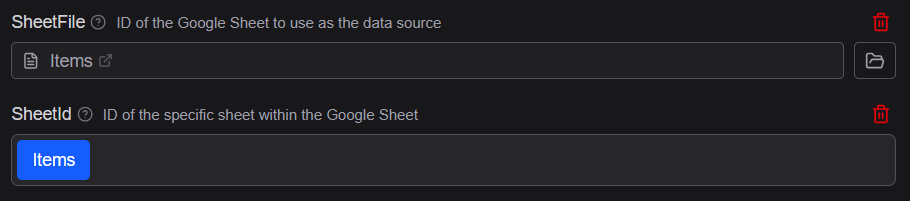
The Sheet File field is the primary data source for the template. Enter either:
- A Google Sheet File — select a Spreadsheet from Google Drive. Data is continually read live from Google Sheets using your signed-in Drive access.
- A hosted CSV URL — select a CSV file from Google Drive. This simpler less flexible source offers integration flexibility with other tools.
Once a source is connected, the column headers from row 1 become available as {{ColumnName}} references in all template elements, and the preview updates to show live data.
Card Size
The SizeMM property (width × height) define the physical dimensions of each card in millimetres. This value controls both the proportions of the rendered card image and how cards are arranged on PDF pages.
Common sizes:
63 × 88— standard poker/playing card (default)44 × 67— mini card70 × 120— tarot card
Changing either dimension rescales the preview and updates the PDF grid layout to match the new proportions.

Drive Folders
The Drive Folders section in the Root settings panel lets you connect Google Drive folders with image resources to your template. Once a folder is connected, Image elements can reference files inside it by filename rather than requiring full public URLs — keeping your spreadsheet data clean and easy to maintain.
Adding a Drive folder
- Click the button in the toolbar to open the Root settings panel.
- Scroll to or add the DriveFolders property and click the button.
- Use the Drive folder picker that appears to search and select a folder from your Google Drive.
Repeat for each folder you want to make available. All configured folders are searched in order when the renderer looks up an image by filename.

Using folders in Image elements
After connecting a folder, open an Image element and set its Source to a column reference that resolves to a filename, such as:
{{ArtworkFilename}}When rendering, the engine searches all connected Drive folders for a file matching the name from the current row's ArtworkFilename column. The matching image loads automatically and appears in the preview.
This means your spreadsheet only needs simple filenames like dragon.png or hero — you never need to store full Drive URLs or file IDs in your data.