Markdown in Text Elements
Full reference for all Markdown and rich-text syntax supported in Board Game Builder text values.
Markdown in Text Elements
Board Game Builder supports a rich subset of Markdown and tag-based formatting in the Source field of Text and Textlist elements. Click the Markdown editor button next to the Source field for an assisted editing experience, or type the syntax directly into the field.
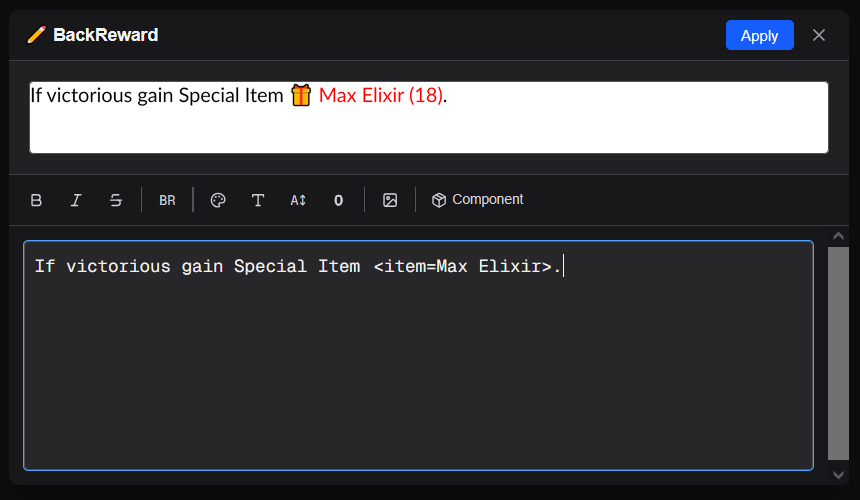
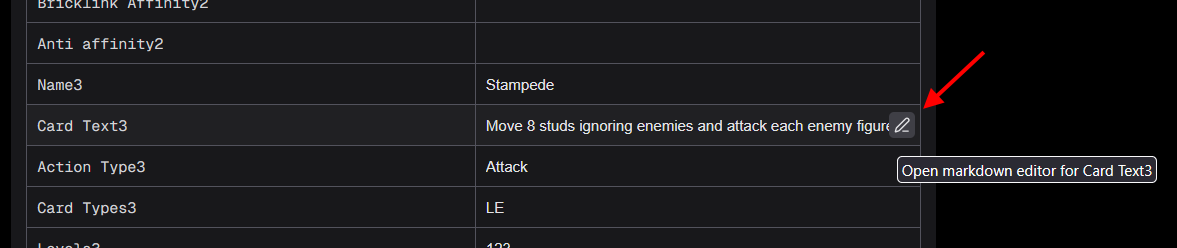
Opening the Markdown editor
Click the Markdown editor button (the pencil/editor icon) next to the Source field to open the assisted Markdown editor panel. It provides formatting toolbar buttons to add styling and add inline components with ease.
Bold, italic, and strikethrough
Standard Markdown syntax:
**Bold text**
*Italic text*
~~Strikethrough text~~
You can also use the underscore variants:
__Bold__
_Italic_
Line breaks
A hard line break is inserted with <br> tag or a blank line in the source. Multiple consecutive line breaks produce multiple blank lines in the output.
First line<br>Second lineInline color
Wrap text in <color=VALUE>...</color> to apply a color to a span of text. VALUE can be a hex color or a valid named color:
Normal text <color=#e63946>red text</color> back to normal
<color=gold>Gold colored words</color>
Inline font
Wrap text in <font=NAME>...</font> to apply a named font to a span. The font name must match a font available in the rendering engine:
<font=Impact>Title text</font> and regular textInline size
Change the font size of a span using <size=N>...</size> where N is a size in points or a relative -X or -X value:
Normal text <size=-2>small footnote</size>
<size=20>Large heading</size> then normal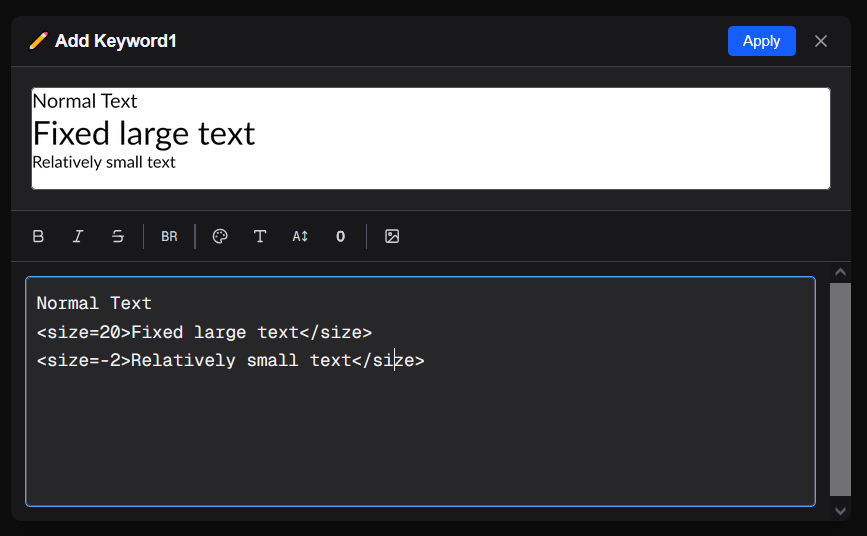
Outlined text
Add an outline ring to some text using <outline=COLOR>...</outline> or <outline=COLOR,COLOR2>...</outline>:
<outline=black>Outlined text</outline>
<outline=#ffffff,#000000>White-outlined text</outline>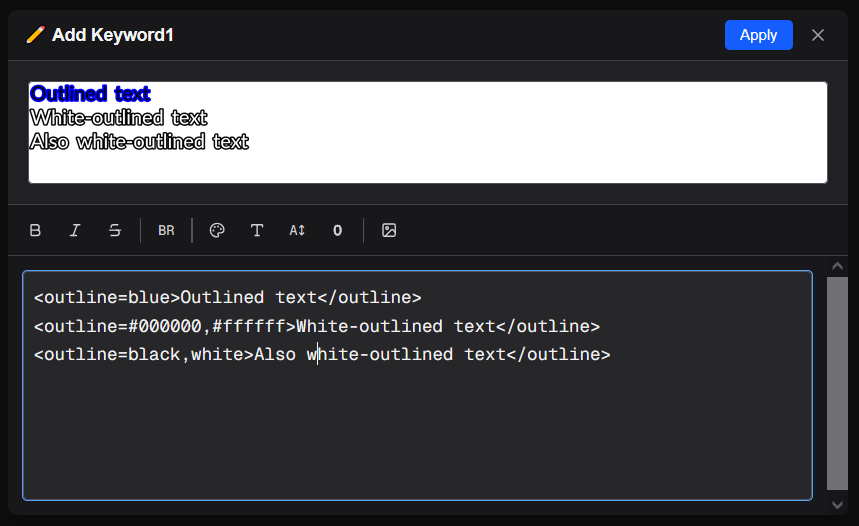
Inline images
Embed an image inline within text using the self-closing image tag:
<img=filename>filename is a file name from your configured Google Drive folder (the file extension is optional). The image is scaled to the current text line height:
Deals <img=sword-icon> damage
<img=mana-gem> Cost: {{ManaCost}}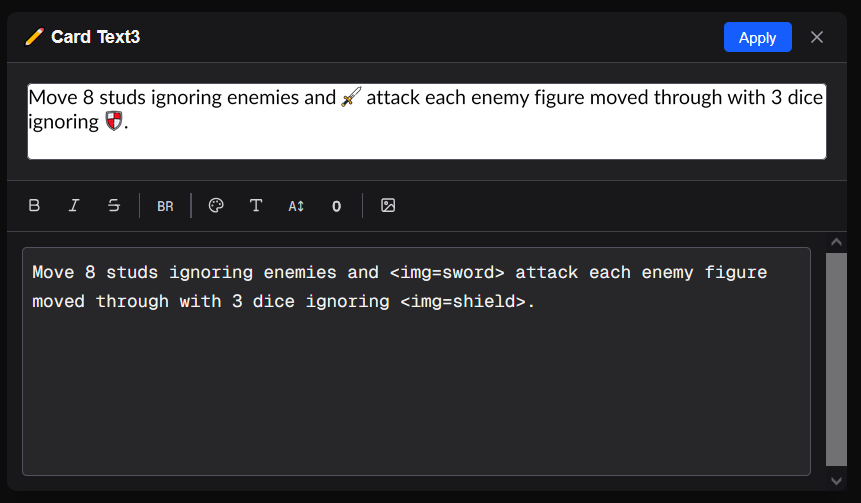
Notes
- The line-break
<br>tag is the recommended way to produce hard line breaks in a single element; use the ParagraphSpacing property on the Text element to add visual space between lines. - Enabling the RawText toggle on a Text element disables all substitution and renders the source exactly as written