PDF Layout & Configuration
An overview of how Board Game Builder arranges rendered card images onto printable PDF pages.
PDF Layout & Configuration
When you generate a PDF, Board Game Builder arranges your rendered card images onto printable pages in a grid. The page size, margins, number of columns and rows, and the spacing between cards are all configured through the PDF layout configuration button on the Asset.

How the grid works
Cards fill the page left-to-right, top-to-bottom within the columns and rows you define. If there are more cards than fit on a single page, additional pages are created automatically.
Configuration
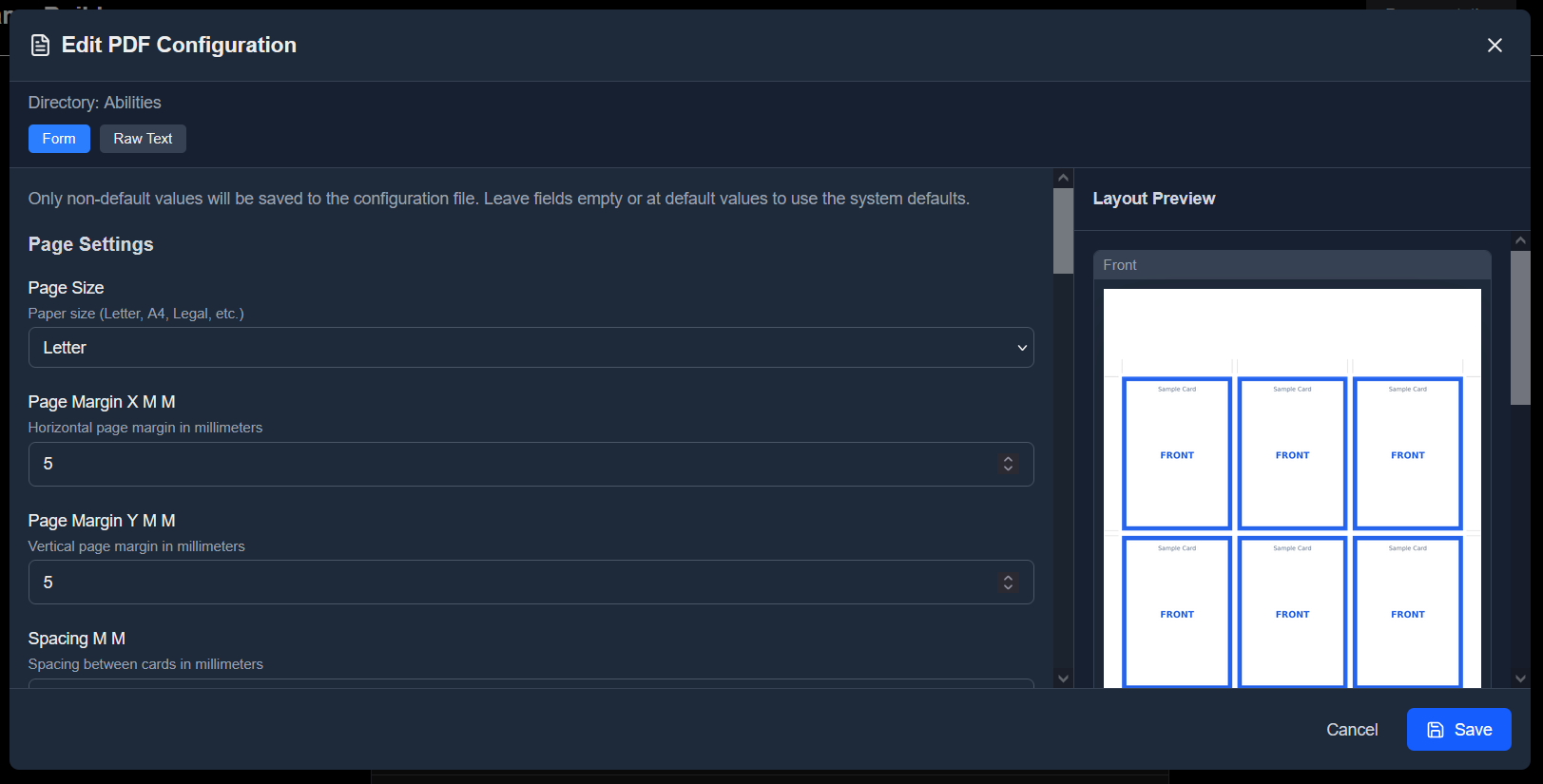
In the editor you can modify many different options for configuring how the cards are layouted.
Page Size
The Page Size option sets the paper format for the PDF. Choose a standard size — A4, A3, Letter, or Legal.
Page Margin
The Margin option sets the blank border around the outside of each page in millimetres. These are configured for the horizontal and vertical borders separately. A larger margin shrinks the usable card area while a smaller margin lets more cards fit per page.
Spacing
The Spacing option adds a gap between adjacent cards in millimetres to help with separating the printed cards. A value of 0 places cards edge-to-edge; larger values create visible separation between cards on the printed sheet.
Add Guidelines
The generated PDF can contain visual guidelines on the outer edges and between cards for easier cutting of the cards when using a ruler.
Page Text / Location
Each layouted page can have some text written in the outer border. This is often used to number the pages or name them. A series of keywords can be used for dynamic text:
| Keyword | Description |
|---|---|
{Page} | The specific page number (including backs) |
{Pages} | The total number of pages |
{Sheet} | The specific sheet number (ignoring back pages) |
{Sheets} | The total number of sheets |
{Side} | "Front" or "Back" |
{File} | The filename of the first card on the page. |
{Folder} | The folder name of the first card on the page. |
The Location option specifies where on the page the text will be placed. It will always ensure the text does not overlap with the cards, but it may overlap with guidelines.
Card backs
You can enable double-sided printing with card backs on the other side from the generated fronts. These options allow you to specify the default back image and other advanced back matching patterns. These options are rarely modified when card back are automatically generated in the asset template.
Bleed
Bleed is extra space around an asset which is supposed to be cut away after printing, ensuring better look if the front and back are not perfectly aligned by the used printer.
The layouter supports both existing bleed in the used images (adjusting the placement of the cut guidelines) and adding bleed to the card images before layouting. There are two algorithms available for generating this bleed called Reversed (mirrors the outer pixels of the image) or Border (using the border color of the image).