Constants
Define reusable named values and reference them anywhere in the template.
Constants
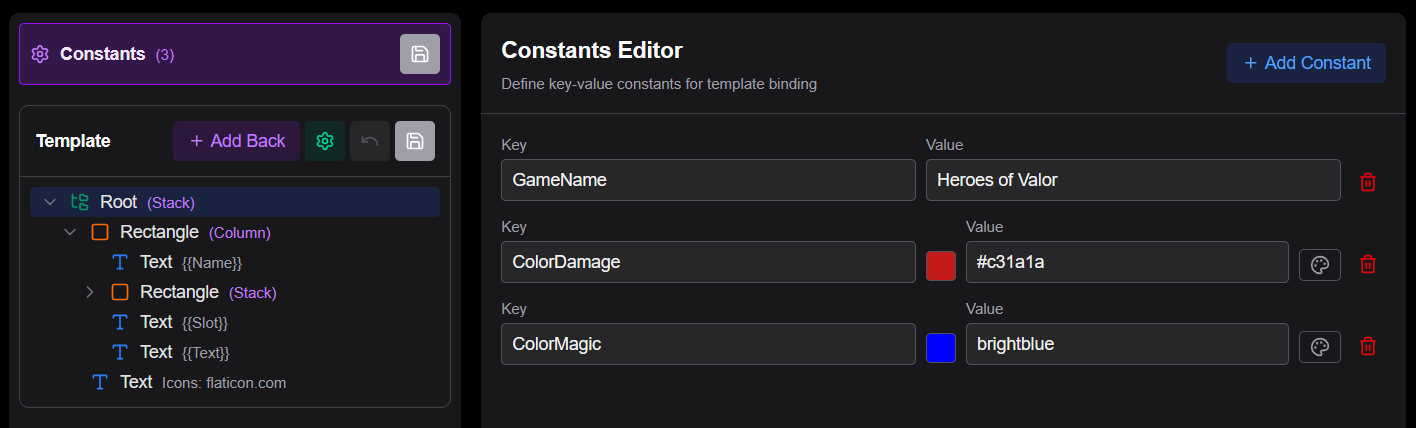
The Constants property lets you define named values in a separate file that can be reused across your entire template and even between assets. Constants are ideal for things like brand colors, standard font sizes, or shared text — define the value once and reference it everywhere, so a single edit updates all uses instantly.
Adding a constant
- Click the button in the toolbar to open the Root settings panel.
- Add or scroll to the Constants property and click the button to create a new constants file.
- You are navigated to the
Constants (0)section in the template view. - Fill in the two fields for your first constant:
| Field | Description |
|---|---|
| Key | The identifier used to reference this constant (e.g. PrimaryColor) |
| Value | The value applied wherever the constant is referenced (e.g. #1a2b3c) |
Add as many constants as you need. They are shared across both the front and back templates of the same asset.
Using a constant in a property
Reference a constant from any property input in the editor using double square brackets:
[[ConstantName]]For example, entering [[PrimaryColor]] in a Rectangle's Fill Color field applies your constant color to that element. The reference is highlighted in blue in the input to confirm it has been recognised.
Constants can be combined with other reference syntax in the same field:
{{CardName}} — [[ExpansionTitle]]Updating a constant's value in the Root settings immediately re-renders the preview, showing the change reflected across every element that references it.
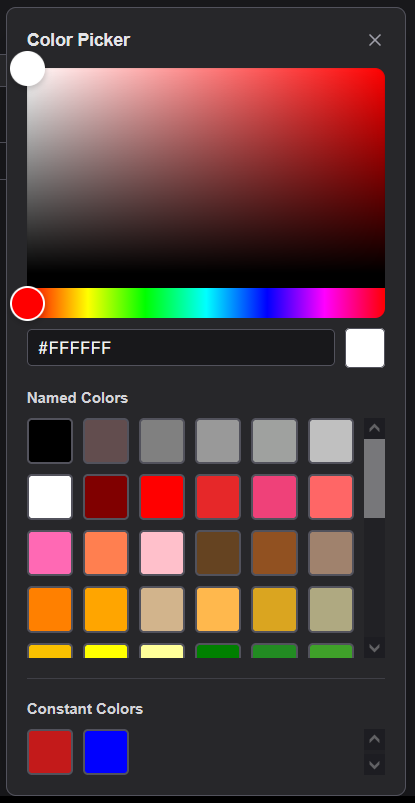
Color Constants are available in the color picker for color properties:
Notes
- Constants are evaluated before data references, so a constant holds a literal value and cannot itself reference
{{data}} - If a referenced constant name doesn't exist, the input shows a red indicator and the field renders as empty