The Template Editor
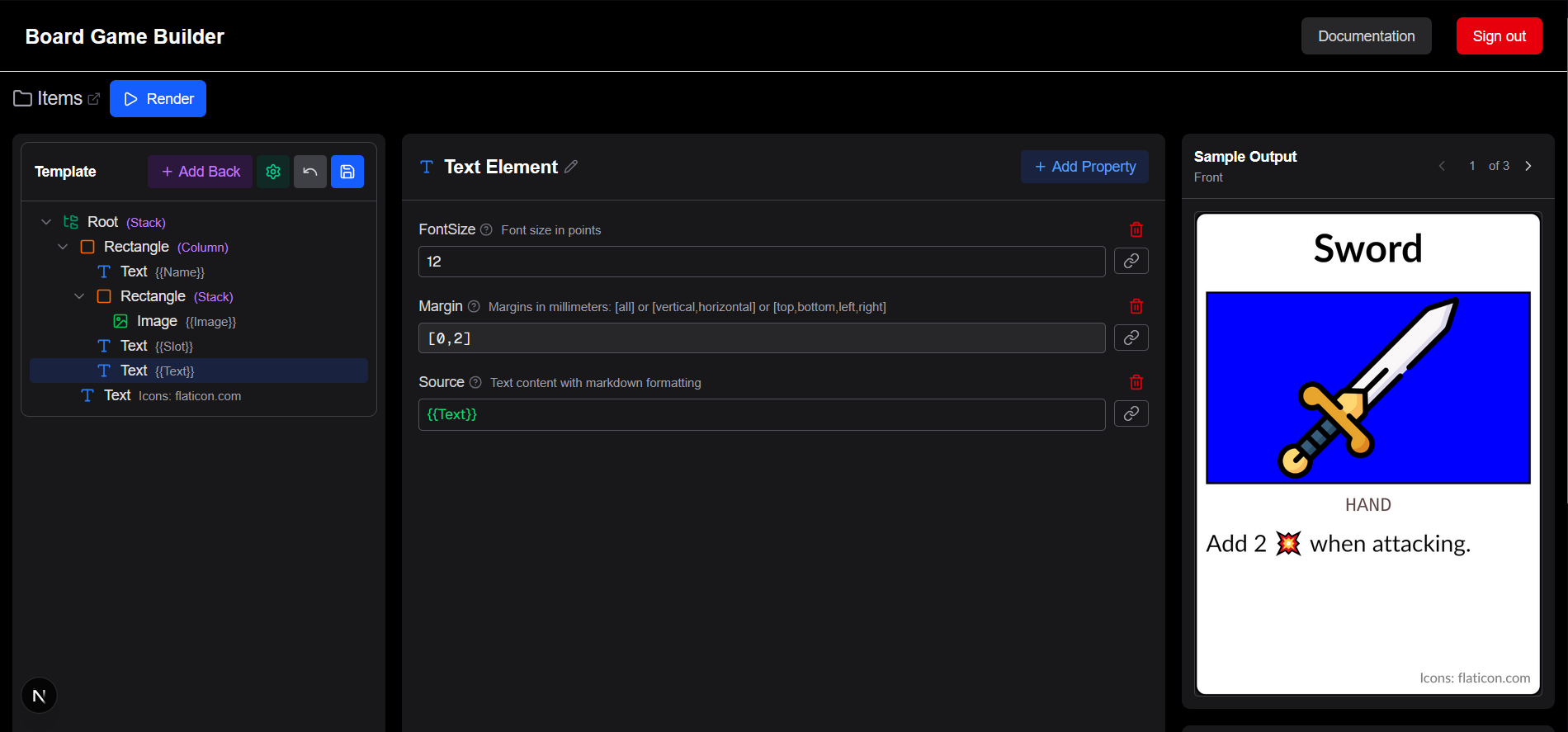
An overview of the Board Game Builder template editor — the sidebar tree, property panel, preview, and toolbar.
The Template Editor
The Board Game Builder template editor is a three-panel layout:
- Left — Element tree: the hierarchy of all elements in the current template, with the Front/Back tab switcher at the top
- Center — Properties panel: shows the properties of the currently selected element; add, edit, or remove properties here
- Right — Preview: a live render of card using the currently shown data row; navigate rows with the arrow controls above the preview or data table.
Template Toolbar actions
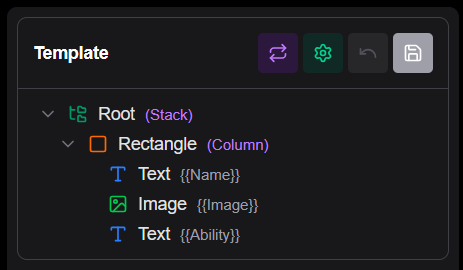
The toolbar at the top of the tree panel contains:
| Action | Description |
|---|---|
| Add Back / Switch | Add a card back template or switch between the Front and Back template. |
| Settings | Show the fundamental template settings properties |
| Undo | Step back through edit history |
| Save | Save the template to Google Drive |
Interactions
Click any element in the tree to select it. The properties panel in the middle immediately updates to show that element's current properties. The preview momentarily highlights the selected element with a blue outline.
You can arrange the elements using drag & drop to change the ordering of elements or even move them on top of another to place it inside. The preview will immediately reflect the changes.
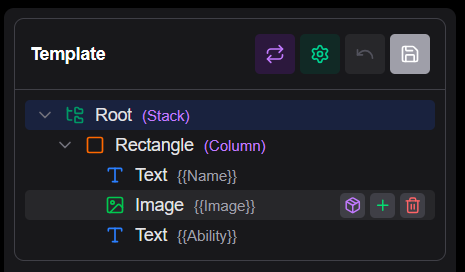
When hovering on an element a series of buttons will be displayed allowing to:
- Convert an element (and children) into a reusable Component.
- Add a new element inside it.
- Delete the element and anything inside it.
Mobile Responsive Design
The editor changes layout when on mobile and smaller displays with limited horizontal space available. The left and right panels turn into drawers that can be opened up when required. The right drawer has a small handle still showing the rendered preview when closed.