Color Picker
How to use the visual color picker to set color properties in Board Game Builder.
Color Picker
Color properties in Board Game Builder can be set using the built-in visual color picker. It lets you choose a hex color visually, select from a named color palette, or reference a constant.
Opening the picker
Click the palette icon (🎨) button next to any color property input (e.g. FillColor, Color, StrokeColor) to open the color picker popup.
Choosing a hex color
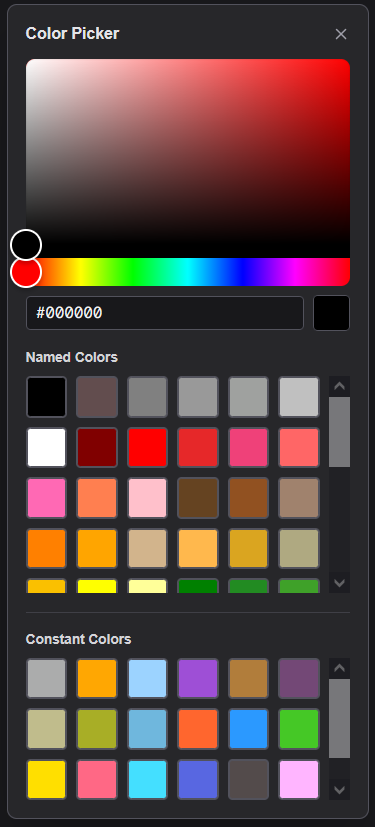
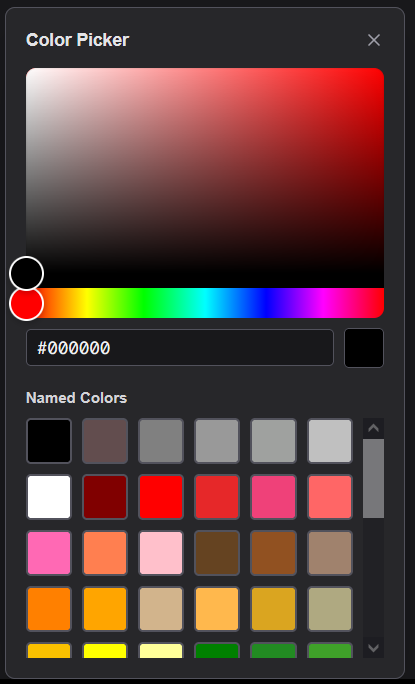
The top section of the picker shows a color wheel and brightness slider. Drag the circle to pick a hue and saturation, then drag the brightness slider to lighten or darken. The hex value of the selected color is shown in the input below and can also be typed directly.
Named colors
The picker includes swatches for common named colors. Clicking a swatch inserts the color name (e.g. white, black, gold) rather than a hex code. Named colors are easier to read in the template and are useful for standard palette colors.
Constant references
If the Root element has Constants defined (via the Constants configuration), those constant names appear as swatches at the bottom of the picker. Clicking a constant swatch insert a reference [[ConstantName]] into the property input. Using constants allows you to change a theme color across the entire template from one place.